
From Stills to Thrills: Finding the Best AI Tool to Turn an Image into Video in 2026
You’ve got a phone full of stunning photos. Beautiful landscapes. Candid moments. Product shots you spent hours perfecting. But here’s the problem: in 2026, static images just don’t stop the scroll anymore.
Table of Contents
Video dominates every platform—TikTok, Instagram Reels, YouTube Shorts, even LinkedIn. The average user watches 17 hours of online video per week. That’s a lot of content competing for attention.
So what if you could turn that single, perfect photo into a captivating video in seconds? Without learning complex editing software? Without hiring a videographer?
Welcome to the world of AI image-to-video tools. These platforms analyze your still image and predict realistic motion—adding camera pans, object movement, depth, and even synchronized sound. The result? Professional-grade video content from a single JPEG.
In this guide, we’ll help you find the best AI tool to turn image into video for your specific needs. Whether you’re a social media manager racing against deadlines, a small business owner creating ads, or just someone who wants to bring family photos to life, we’ve got you covered.
Let’s dive in.
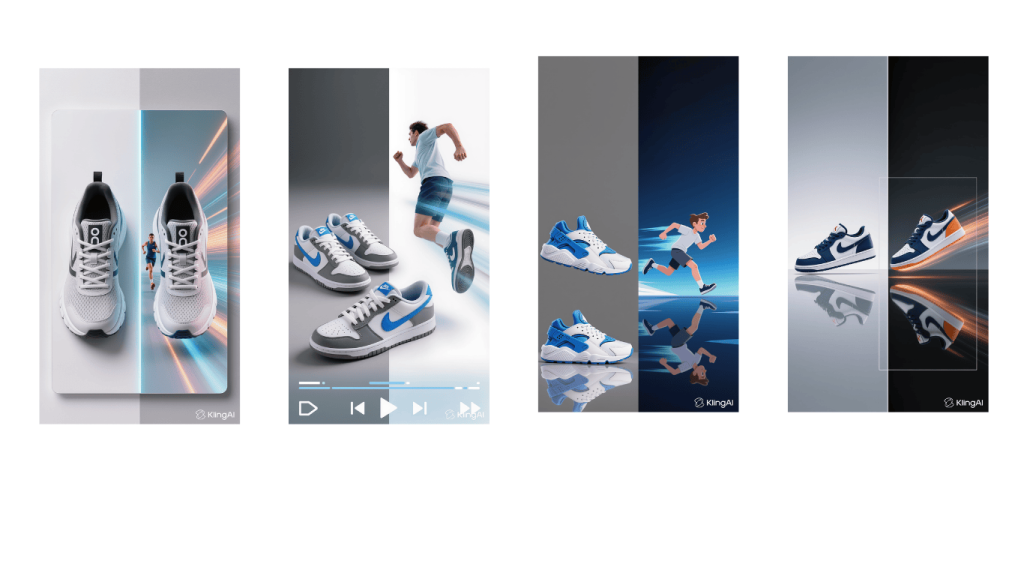
What Is AI Image-to-Video and Why Is It a Game-Changer?
Before we compare tools, let’s understand the magic happening behind the scenes.
AI image-to-video technology uses advanced machine learning models—specifically generative adversarial networks (GANs) and diffusion models—to analyze the content of a still photograph. The AI identifies subjects, understands depth, predicts how objects would naturally move, and generates new frames to create seamless motion.
Think of it as teaching a computer to imagine what happened right before and after you clicked the shutter.
Why does this matter for you?
- Speed: What once took hours in After Effects now takes seconds.
- Cost: No need for video crews, actors, or expensive equipment.
- Accessibility: Anyone with a smartphone can create professional-looking videos.
- Engagement: Video content gets 48% more views and 1200% more shares than images and text combined.
For marketers, this means turning product catalogs into dynamic ads. For creators, it means transforming static art into engaging reels. For families, it means animating old photos into living memories.
Top Contenders for the Best AI Tool to Turn an Image into Video
The market has exploded with options. After extensive testing, these four platforms stand out as the leaders in 2026. Each serves a different audience, so pay attention to which one matches your goals.
Google Veo 3.1 – The Cinematic Choice for High Fidelity
Best for: Professional content creators, marketers, and filmmakers who need production-ready quality.
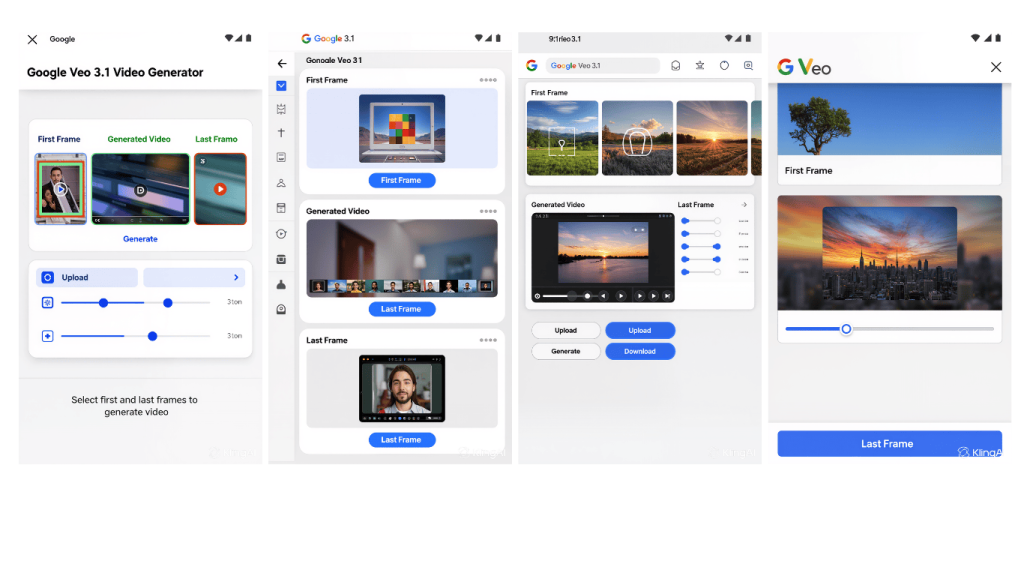
Google’s DeepMind team has outdone themselves with Google Veo 3.1. This isn’t just an animation tool—it’s a complete video generation suite that understands cinematography.
Key Features:
- Multi-image blending: Upload multiple photos and Veo creates a coherent video narrative connecting them.
- Synchronized audio generation: The AI doesn’t just animate visuals—it generates matching sound effects and ambient audio.
- SynthID watermarking: Google embeds invisible, identifiable watermarks to ensure responsible AI use and content authenticity.
- 4K resolution support: Unlike competitors that max out at 1080p, Veo 3.1 can output stunning 4K video.
Who should use it: If you’re creating commercial content, YouTube videos, or anything where quality matters most, Google Veo is your answer. The learning curve is slightly steeper, but the results justify the effort.
Pricing: Starting at $29/month for 50 generations.
Pippit by CapCut – The Social Media Powerhouse
Best for: Social media managers, influencers, and anyone creating content for TikTok, Instagram, or YouTube Shorts. (Pippit AI)
If you’ve used CapCut for video editing, you’ll feel right at home with Pippit. Built by the same team behind the world’s most popular mobile editor, Pippit focuses on speed and trend-awareness.
Key Features:
- Trend templates: Pippit analyzes current social media trends and offers one-click animation styles that match what’s popular right now.
- AI avatars and voiceovers: Turn a selfie into a talking avatar or add multilingual voiceovers to your animated images.
- Platform-optimized exports: One tap exports your video perfectly formatted for TikTok (9:16), Instagram (square), or YouTube (16:9).
- Real-time preview: See your animation as you adjust parameters, no waiting for renders.
Who should use it: Anyone posting daily to social media. Pippit’s integration with CapCut’s massive music and effect library makes it the fastest path from photo to published video.
Pricing: Free tier available (with watermark). Pro at $12.99/month.
Higgsfield.ai – The Creative Suite for Custom Motion
Best for: Creative professionals, artists, and advanced users who want granular control over movement. (Higgsfield AI)
Higgsfield positions itself as the “Photoshop of AI video.” While other tools offer preset animations, Higgsfield gives you camera controls that mirror professional filmmaking equipment.
Key Features:
- Sora 2 Trends for marketing assets: Analyze what’s working in your industry and generate videos optimized for those specific audiences.
- WAN Camera Control: This is the standout feature. You can specify exact camera movements—dolly zoom, crane shot, tracking shot—with numerical precision.
- Multi-layer animation: Animate different elements of your image separately. Make the background move while keeping the subject still, or vice versa.
- Frame-by-frame editing: For perfectionists, Higgsfield allows manual tweaks to specific frames.
Who should use it: If you’re frustrated by the “one-size-fits-all” approach of other tools and want true creative freedom, Higgsfield delivers. The learning curve is real, but the possibilities are endless.
Pricing: $24/month for Basic, $49/month for Pro (includes WAN Camera Control).
Steve AI – The Versatile Tool for Marketing Repurposing
Best for: Business owners, educators, and content teams repurposing existing assets. (Steve AI)
Steve AI takes a different approach. Instead of focusing on cinematic quality or social trends, it excels at turning business content into videos.
Key Features:
- Product photo to ad: Upload your product catalog, and Steve generates multiple ad variations with different calls-to-action.
- Slide and diagram animation: Turn boring PowerPoint slides into engaging explainer videos automatically.
- Brand consistency: Train Steve on your brand colors, fonts, and logo placement. Every video maintains your visual identity.
- Bulk processing: Generate dozens of videos at once from a folder of images—perfect for e-commerce catalogs.
Who should use it: Business owners who need consistent, on-brand video content without hiring a creative agency. Educators turning lecture slides into engaging mini-lessons.
Pricing: Starting at $19/month for 100 generations.
How to Choose the Right Tool for Your Needs
Still unsure which platform fits? Let’s make this simple. Answer these three questions:
1. What’s your primary goal?
- Going viral on social media? → Choose Pippit. Its trend templates and platform optimization are unmatched.
- Creating a professional commercial? → Choose Google Veo 3.1. The 4K output and audio synchronization scream quality.
- Telling an artistic story? → Choose Higgsfield. Camera control gives you director-level power.
- Selling products online? → Choose Steve AI. Batch processing and brand consistency save time and money.
2. What’s your skill level?
- Beginner: Pippit (most intuitive interface)
- Intermediate: Steve AI or Google Veo
- Advanced: Higgsfield (steepest learning curve, highest reward)
3. What’s your budget?
- Free options: Pippit (watermarked), limited trials on others
- Under $15/month: Pippit Pro
- Under $25/month: Steve AI or Higgsfield Basic
- Under $30/month: Google Veo 3.1
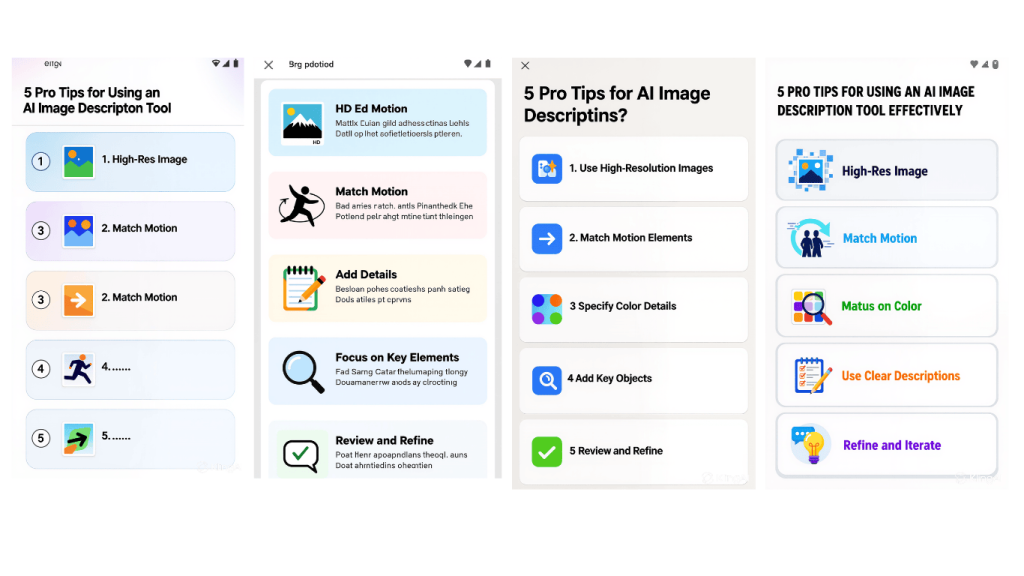
Step-by-Step: How to Turn Your First Image into a Video
Ready to try? Here’s a universal guide that works across most platforms:
Step 1: Select Your Hero Image
Choose a high-resolution photo (at least 1080px on the longest side). Images with clear subjects and distinct foreground/background elements work best. Avoid cluttered scenes—the AI needs to understand what to move.
Pro tip: Photos with depth (mountains, streets, rooms) animate more convincingly than flat surfaces.
Step 2: Craft Your Motion Prompt
Most tools let you describe the movement you want. Be specific:
- ❌ “Make it move”
- ✅ “Slow dolly zoom toward the subject’s face”
- ✅ “Gentle left-to-right pan across the landscape”
- ✅ “Camera orbits around the product clockwise”
Step 3: Generate and Review
Click generate and watch the magic happen. Most tools create 3-8 second previews within 30 seconds. Review the output:
- Does the motion look natural?
- Are there any weird distortions?
- Does it match your vision?
Step 4: Export and Share
Choose your export format:
- MP4 for universal compatibility
- GIF for simple sharing
- Platform-specific (TikTok, Reels, Shorts) if available
5 Pro Tips for Better AI-Generated Videos
After generating hundreds of videos across these platforms, here’s what separates amateur results from professional ones:
1. Start with exceptional images
Garbage in, garbage out. The AI can only work with what you give it. Use sharp, well-lit, high-resolution photos. Blurry smartphone snapshots produce blurry videos.
2. Match motion to mood
A luxury brand should have slow, smooth camera movements. A high-energy product launch benefits from quick zooms and cuts. Think about the emotion you’re conveying and choose motion that amplifies it.
3. Keep it short (for now)
Most AI tools excel at 3-8 second clips. Longer videos increase the chance of artifacts or unnatural movement. For longer content, stitch multiple AI-generated clips together.
4. Use first and last frame features
Platforms like Google Veo and Higgsfield let you specify the starting image AND the ending image. The AI then figures out the motion between them. This gives you narrative control—your subject can smile, wave, or move across the frame.
5. Enhance in external editors
AI video is amazing, but it’s not perfect. A quick pass through CapCut or Premiere Rush to adjust colors, add text overlays, or trim the ends can elevate your final product significantly.
Conclusion
The era of static images is ending. Video is the language of modern communication, and AI has finally made it accessible to everyone.
The best AI tool to turn image into video depends entirely on your goals:
- Google Veo 3.1 for cinematic quality
- Pippit for social media speed
- Higgsfield for creative control
- Steve AI for business efficiency
But here’s the truth: they’re all incredible. The technology has matured to the point where “good enough” is actually “remarkable.”
So stop overthinking. Stop letting perfect be the enemy of done. Pick one tool from this list, upload your favorite photo, and watch it come to life.
Your still images deserve to move. Make it happen today.
Read More About :- Unlock Your Inner Artist: 3 Best Pixar Style Image Generation AI Tools for Epic Portraits 2026
Which tool will you try first? Drop a comment below or share your first AI-generated video with us on social media. We’d love to see what you create!
External Links to Trusted Sources
1. Google DeepMind (Veo 3.1) – Official Announcement Coverage
Link: Google DeepMind’s Veo 3.1 brings vertical video, higher-fidelity upscaling and better character consistency
2. Microsoft Azure AI (Computer Vision) – Technical Documentation
Link: Quickstart: Image Analysis 4.0 – Azure AI services
3. Hugging Face – Computer Vision Models and Educational Content
Link: Using Hugging Face for computer vision tasks
Frequently Asked Questions
How long does it take to generate a video?
Most platforms deliver previews in 15-60 seconds. High-resolution exports (4K) may take 2-3 minutes
Is the audio generated by AI too?
Advanced tools like Google Veo 3.1 can generate synchronized audio. Others require you to add music or voiceovers separately.
Can I use these videos commercially?
Yes, but check each platform’s terms. Free tiers often require attribution or carry watermarks. Paid plans typically grant full commercial rights.
What’s the best AI tool to turn image into video for free?
Pippit offers a generous free tier with a small watermark. It’s perfect for testing the technology before committing.
Do I need a powerful computer?
No. Everything runs in the cloud. Your phone or laptop just needs a browser or the app.