
AI Image Quality in 2026: Top Tools to Enhance & Upscale Your Photos
Have you ever grabbed your phone to capture a perfect moment, only to realize later the photo is blurry, pixelated, or just too small? Maybe you’ve got old family photos that look grainy, or you created AI artwork that lacks the crisp detail you wanted for a print.
For years, the answer was simple: “Sorry, you can’t fix that.” Blurry was blurry. Pixelated was pixelated. Low resolution meant low quality—forever.
But here in 2026, that’s no longer true.
Table of Contents
Thanks to artificial intelligence, we now have tools that can actually reconstruct missing details, sharpen blurry faces, and upscale images to print-ready resolutions without turning them into a mess of pixels. So let’s answer the big question on everyone’s mind: Is there an AI tool to increase image quality in 2026?
Yes—absolutely. And in this post, we’ll show you exactly how it works, which tools are the best right now, and how you can start enhancing your own images today.
How Does AI Actually Improve, AI Image Quality in 2026?
To understand why AI is such a game-changer, you first need to know how old-school “upscaling” worked.
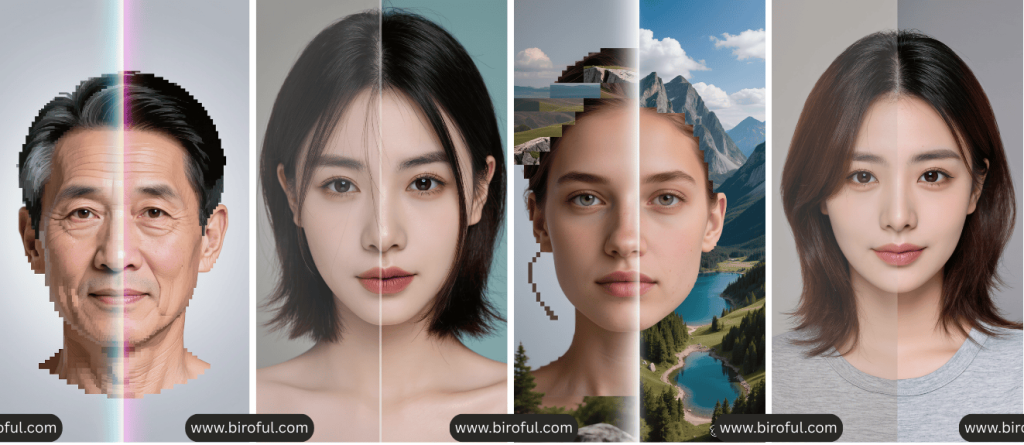
Traditional methods (like Photoshop’s basic “Image Size” tool) simply stretched your image and tried to guess what pixels went where. The result? Blurry edges, jagged lines, and that unmistakable “I blew this up too much” look.
AI-powered tools in 2026 work completely differently. They use something called generative upscaling or super-resolution technology.
Here’s the simple explanation:
- Training: The AI has been trained on millions of high-quality images. It knows what a human eye should look like. It knows what tree bark should look like. It knows fabric texture, skin pores, and fur patterns.
- Analysis: When you upload a low-quality image, the AI analyzes every pixel. It identifies what the image contains—”Oh, that’s a face,” “That’s a brick wall,” “That’s text.”
- Reconstruction: Then, it intelligently adds detail where none existed before. It’s not guessing randomly; it’s filling in missing information based on what it has learned.
In 2026, the best tools go even further. They can:
- Remove noise (that grainy look from low-light photos) while keeping sharp edges.
- Recover faces by rebuilding eyes, noses, and smiles that were almost unrecognizable.
- Add depth so images don’t look flat after upscaling.
It’s like having a professional photo restorer working in seconds—for free or cheap.
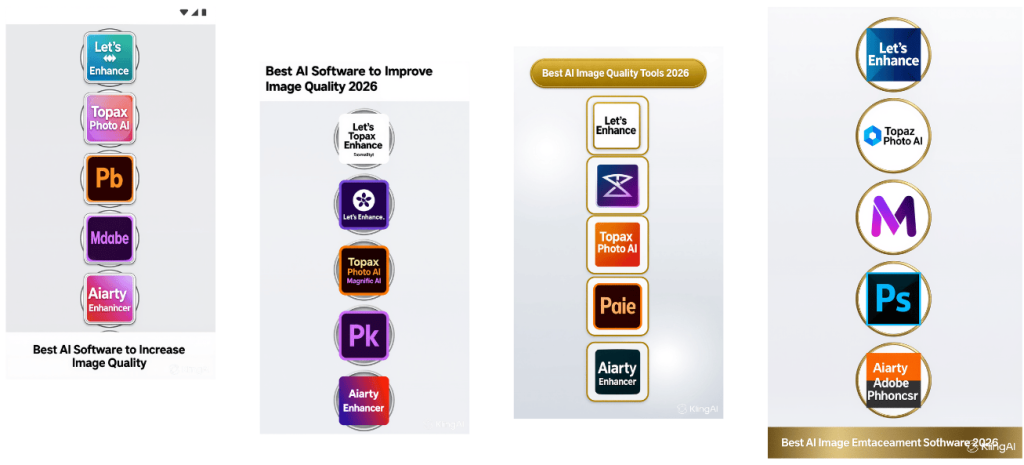
Top 5 AI Tools to Increase Image Quality in 2026
There are dozens of tools out there, but we’ve tested and narrowed it down to the top five based on quality, ease of use, and value for money. Whether you’re 15 or 75, you’ll find something here that works for you.
1. Let‘s Enhance – Best for Print and E-commerce
Who it’s for: Small business owners, print shops, and anyone needing high-resolution images for physical products.
Let‘s Enhance has been around for a while, but their 2026 updates have made it a powerhouse. It’s a web-based tool—no downloads required—and it specializes in taking images to print-ready resolution (300 DPI) .
Key Features:
- Multiple AI models: Choose “Digital Art” for illustrations or “Photo” for real-life images.
- Batch processing: Upload dozens of images at once (great for product catalogs).
- Color correction: It doesn’t just upscale; it can fix faded colors in old photos.
Pricing: Free tier available (5-10 images/month). Paid plans start around $9/month.
2. Topaz Photo AI – Best for Professional Photographers
Who it’s for: Photographers, serious hobbyists, and anyone who works with RAW camera files.
Topaz is the gold standard for desktop-based enhancement. If you shoot with a DSLR or mirrorless camera and want to keep full control, this is your tool. It runs on your computer (Windows/Mac), so you don’t need an internet connection.
Key Features:
- RAW file support: Works directly with camera files.
- Automatic detection: It scans your image and applies the right fix—sharpening where needed, noise reduction where helpful.
- Face recovery: Specifically trained to rebuild facial details without the “waxy” look some AI tools create.
Pricing: One-time purchase (around $199) or subscription options.
3. Magnific AI – Best for Creative “Reimagining”
Who it’s for: AI artists, digital creators, and anyone wanting to add artistic flair.
Magnific made waves in 2024-2025, and by 2026, it’s become the go-to for creators who want more than just upscaling. It has a “Creative” mode that can actually add new details to your image based on text prompts.
Example: Upload a simple pencil sketch, and Magnific can turn it into a detailed oil painting while upscaling it 4x.
Key Features:
- Prompt-based enhancement: Tell the AI what style you want.
- Insane resolution: Can upscale to 10,000+ pixels wide.
- Slider controls: Adjust how “creative” or “faithful” the AI should be.
Pricing: Subscription-based, around $29/month for pro features.
4. Adobe Photoshop (Generative Upscale) – Best for Integrated Workflows
Who it’s for: Graphic designers and anyone already using Adobe products.
If you already pay for Creative Cloud, you might not need another tool. Adobe has integrated AI-powered upscaling directly into Photoshop’s “Image Size” dialog. It’s more conservative than dedicated tools, which is perfect for professional design work where accuracy matters.
Key Features:
- Seamless workflow: No need to switch apps.
- Preserve Details 2.0: Adobe’s latest AI model keeps textures and edges sharp.
- Integration: Combine with other Photoshop AI tools (like Generative Fill) for complete control.
Pricing: Included in Creative Cloud subscription ($10-20/month).
5. Aiarty Image Enhancer – Best for Ultra-High Res (16K-32K)
Who it’s for: Digital artists, wallpaper creators, and extreme upscaling needs.
Aiarty is a newer player (2025) that has quickly become a favorite for users who need massive enlargements. We’re talking taking a 1MP image to 32MP or higher without visible artifacts.
Key Features:
- Model selection: Choose “Real-Photo,” “Digital Art,” or “High-Fidelity” modes.
- Detail injection: It’s specifically designed to add micro-detail to areas that would otherwise look smooth and fake.
- Desktop app: Works offline with GPU acceleration.
Pricing: One-time purchase around $99.
Quick Comparison: Desktop vs. Cloud Tools
Not sure whether you need software on your computer or a website? Here’s a quick breakdown to help you decide.
| Feature | Desktop Tools (Topaz, Aiarty) | Cloud Tools (Let’s Enhance, Magnific) |
|---|---|---|
| Internet Needed | No | Yes |
| Processing Speed | Uses your computer’s power | Uses their servers (fast but dependent on upload) |
| Privacy | Images stay on your device | Images uploaded to their servers |
| Payment Model | Often one-time purchase | Usually subscription or credits |
| Best For | Batches, privacy, RAW files | Quick jobs, no powerful computer needed |
How to Use an AI Image Upscaler (Quick Tutorial)
Let’s walk through the general process. Most tools follow the same basic steps.
Step 1: Choose Your Tool
Decide what you need. For this example, let’s use Let‘s Enhance because it’s web-based and beginner-friendly.
Step 2: Upload and Select Mode
- Drag and drop your image.
- Choose the AI model that matches your image type. If it’s a portrait, pick “Face.” If it’s a digital drawing, pick “Digital Art.”
Step 3: Set Parameters
- Choose your upscale factor (2x, 4x, etc.). For most uses, 4x is plenty.
- Some tools let you adjust “Creativity” or “Noise Reduction.” Start with defaults and experiment later.
Step 4: Download and Compare
- Hit “Process” and wait a few seconds.
- Once done, zoom in to compare the before and after. You’ll likely be amazed.
- Download your new, enhanced image.
Pro Tip: Always keep your original file. If you don’t like the result, you can try again with different settings.
Conclusion
So, is there an AI tool to increase image quality in 2026? Absolutely. Whether you’re a professional photographer, a digital artist, a small business owner, or someone who just wants to fix old family photos, there’s a tool out there for you.
The days of accepting blurry or pixelated images are over. With AI, you can:
- Restore old memories.
- Print your digital art at large sizes.
- Enhance product photos for your online store.
- Simply make your social media posts look sharper.
Now it’s your turn.
Which image quality issue bothers you the most? Is it blurriness? Grainy low-light shots? Pixelated AI art?
Pick one of the tools above—I’d suggest starting with Let‘s Enhance or the Topaz free trial—and try it on your worst-quality image. You might be surprised at what you can save.
Drop a comment below and let us know which tool you tried and how it worked for you. And if you have a before-and-after image, we’d love to see it!
Read More About :- Beyond the Prompt: AI Image Descriptions Tool is Your Secret Weapon for Next-Level Generations in 2026
External Links (Trusted Sources)
Why it‘s a good source: This link points to a developer tool on the official NPM registry. While your article focuses on image quality, this tool focuses on image description. It’s a valuable link because it demonstrates the broader ecosystem of AI-powered imaging tools. It shows how AI can not only enhance the pixels of an image but also understand and describe its content, which is a complementary and increasingly important technology for SEO and accessibility.
Let‘s Enhance: AI Image and Video Upscaling to 4K in 1 Workflow | 2026 Guide
Why it‘s a good source: This is the official blog of Let’s Enhance, one of the tools featured in your article. It provides an in-depth, technical look at how their “Prime” upscaling model works, specifically discussing the challenges of upscaling different types of images like portraits, product photos, and food photography. It serves as a great resource for readers who want to dive deeper into the mechanics of one specific tool.
Adobe: Generative Upscale with Topaz Gigapixel – Frequently Asked Questions
Why it‘s a good source: This is an official Adobe help page discussing their integration with Topaz Gigapixel. It’s a highly authoritative source that confirms the collaboration between two major players in the industry. It provides official information on how the upscaling feature works within Lightroom, the use of “generative credits,” and technical details like maximum output resolution.
NPM: imgdesc – CLI tool for generating image metadata
Frequently Asked Questions (FAQ)
How big can I upscale an image?
In 2026, the sky’s the limit. Tools like Aiarty claim to support 16K and 32K output. Realistically, you can comfortably upscale any image 4x to 6x with excellent results. Beyond that, quality depends on the original image and your chosen tool.
Will upscaling an image make it look fake?
It depends on the tool and settings. Conservative modes (like Adobe’s “Preserve Details”) keep the original look. Creative modes (like Magnific) add new details, which can look amazing but may change the original style. Always check samples before committing.
Can AI fix a blurry face in a photo?
Yes. Tools like Topaz Photo AI and Let‘s Enhance have specific “Face Recovery” or “Portrait” modes. They analyze facial features and rebuild eyes, mouths, and skin texture. It works surprisingly well, even on very blurry photos.
Is there a free AI tool to increase image quality?
Yes, most tools offer a free tier with limitations. Let‘s Enhance gives you 5-10 free credits per month. Topaz offers a 30-day free trial of their full software. Adobe Photoshop has a 7-day free trial.